
Your ConnectMachine network now works with every AI tool you use
With our new MCP integration, you can manage contacts and cards directly from Claude, Cursor, VS Code, Zed, and any MCP-compatible AI tool. No new dashboard to learn. Ask, and it is done.
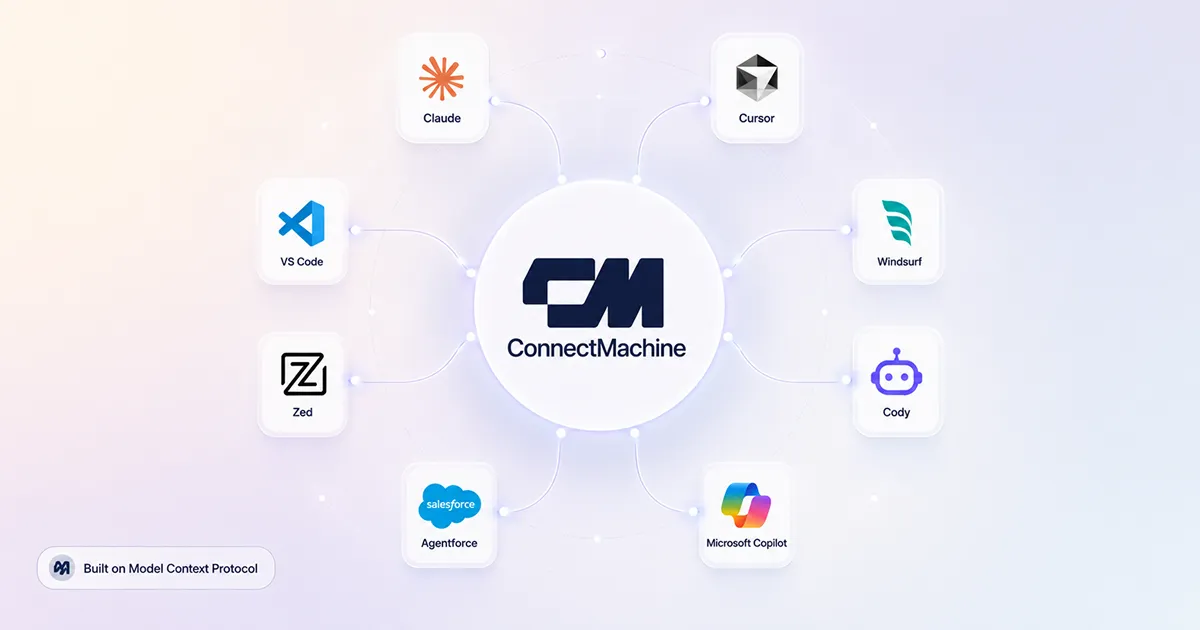
Every ConnectMachine user has run into the same friction: your network lives in the app, but your daily work happens somewhere else. You are in Claude drafting an outreach email and you need the VP of Sales you met at Web Summit. You switch to ConnectMachine, search, copy the details, switch back. You are in Cursor and you need context on a contact from Acme Corp. Same dance. Today that friction disappears.
What is MCP, briefly
Model Context Protocol (MCP) is an open standard developed by Anthropic that lets AI tools connect to external systems in a standardized way. Instead of every app building custom integrations for every AI tool, MCP creates one shared language.
If an app supports MCP, and ConnectMachine now does, any MCP-compatible AI can talk to it directly. No copy-paste. No custom integrations. No context switching. Think of it as USB-C for AI tools: one standard, and all your devices work with it.
Adding and editing contacts
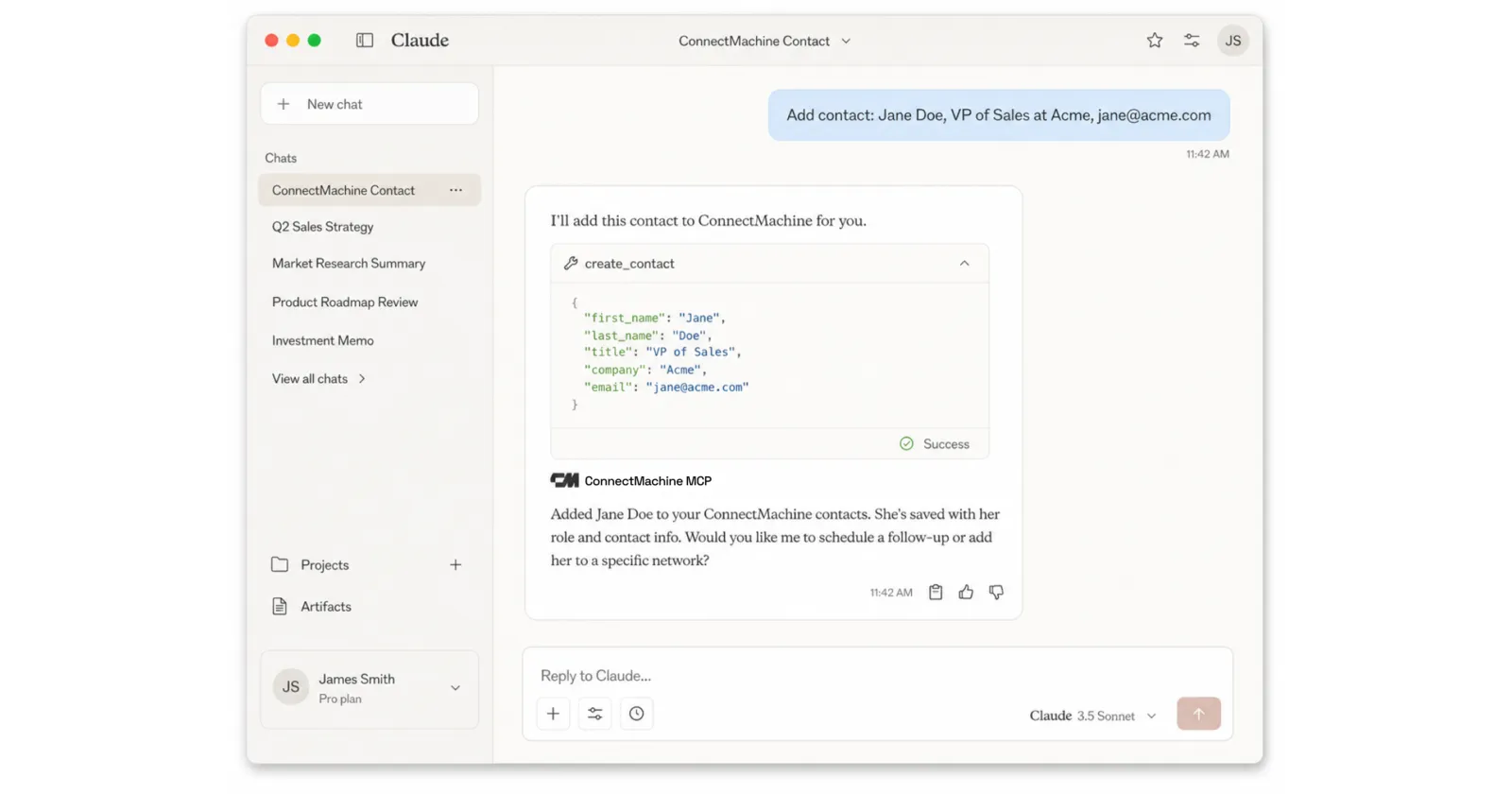
Just say what you mean:
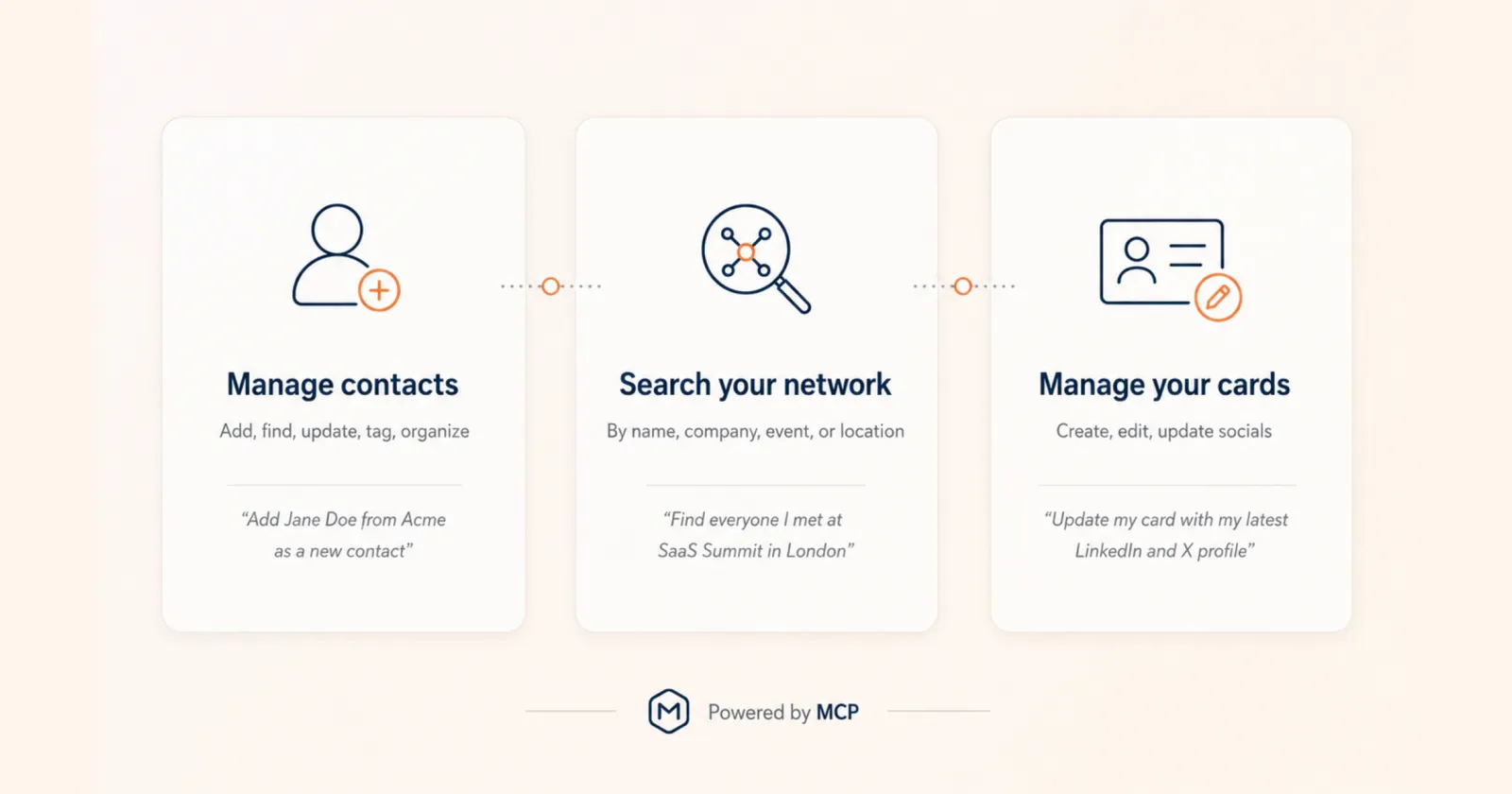
- "Add a contact: Jane Doe, VP of Sales at Acme, jane@acme.com, +1 555 010 2020."
- "Update Priya's email to priya@newco.com and set her job title to CTO."
- "Add my LinkedIn and website to my ConnectMachine card."
Your AI parses the natural-language input, calls the ConnectMachine MCP server, and the update happens instantly. No form to fill. No app to open. No context to switch.
Finding and searching your network
Ask your AI, get answers:
- "Find everyone from Acme Corp and show their emails."
- "List my contacts who are founders."
- "Who did I meet at Web Summit?"
- "Pull up Jane Doe's details."
Search covers name, company, job title, email, phone, notes, location, and the event where you met. If there are multiple matches, two Jane Does for instance, the server reports the ambiguity and your assistant asks you which one you mean rather than guessing. Nobody edits the wrong person's record.
Managing your cards
Your own digital business cards work the same way:
- "Add my LinkedIn and website to my ConnectMachine card."
- "Update my job title on my main card."
- "Create a new card for my consulting business."
Perfect for when you are mid-workflow and realize you need to update your card for a new context.
Which AI tools support this today
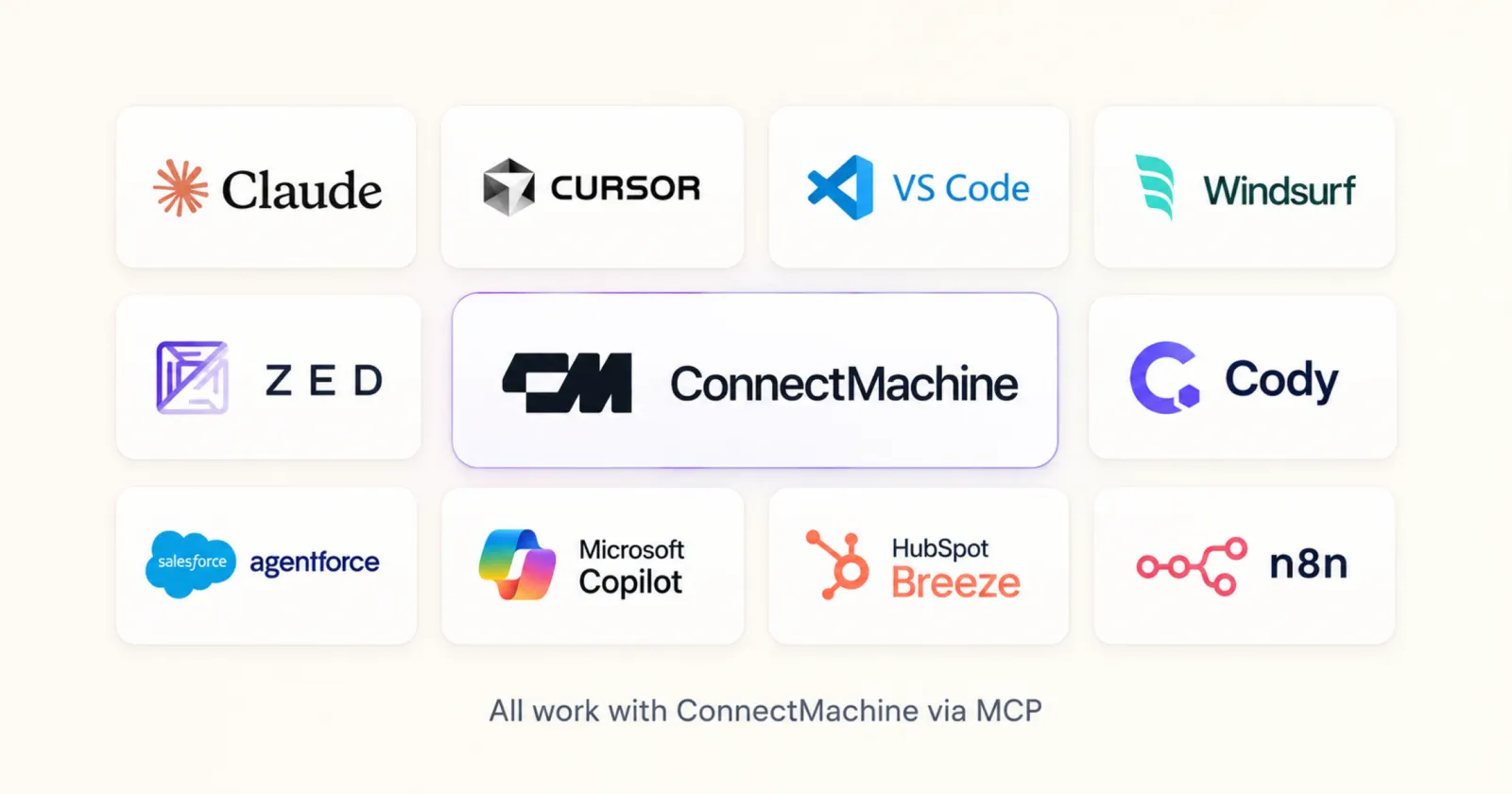
ConnectMachine runs a standard remote MCP server, so it works with any client that speaks the protocol. We have verified the setup end to end in Claude (web, desktop, and Claude Code), Cursor, VS Code, and Zed.
The wider ecosystem is growing fast. Windsurf, Cody, Salesforce Agentforce, Microsoft Copilot, HubSpot Breeze, and n8n are all adding or shipping MCP support. As each one lands, your ConnectMachine network becomes available inside it with no additional work on your side.
Real workflows this unlocks
The founder's morning briefing
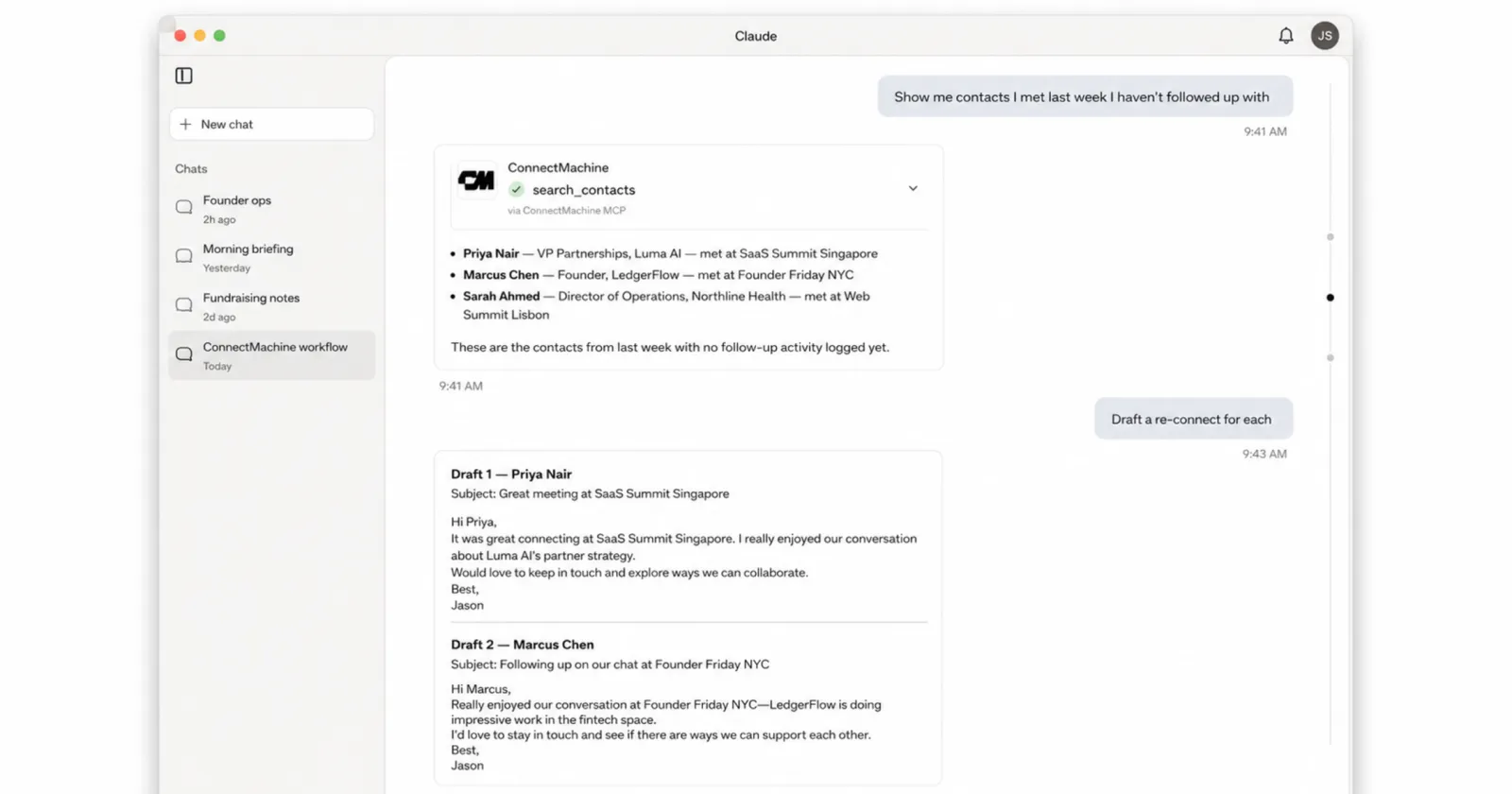
You open Claude and ask: "Show me contacts I met last week I have not followed up with. Draft a personalized re-connect message for each." Claude pulls the contacts from ConnectMachine, drafts the messages, and shows them to you. Approve, edit, or send, all without leaving the chat.
The developer's context switch that never happens
You are in Cursor building a customer-facing feature and you need the head of engineering at Acme. You ask, Cursor queries ConnectMachine, and the contact comes back inline. You go back to coding without breaking flow.
The consultant's meeting prep
Before a client meeting you ask: "What do I know about this contact? Where did we meet?" Every meeting starts with full context. Nothing forgotten, nothing awkward.
Setting it up takes about a minute
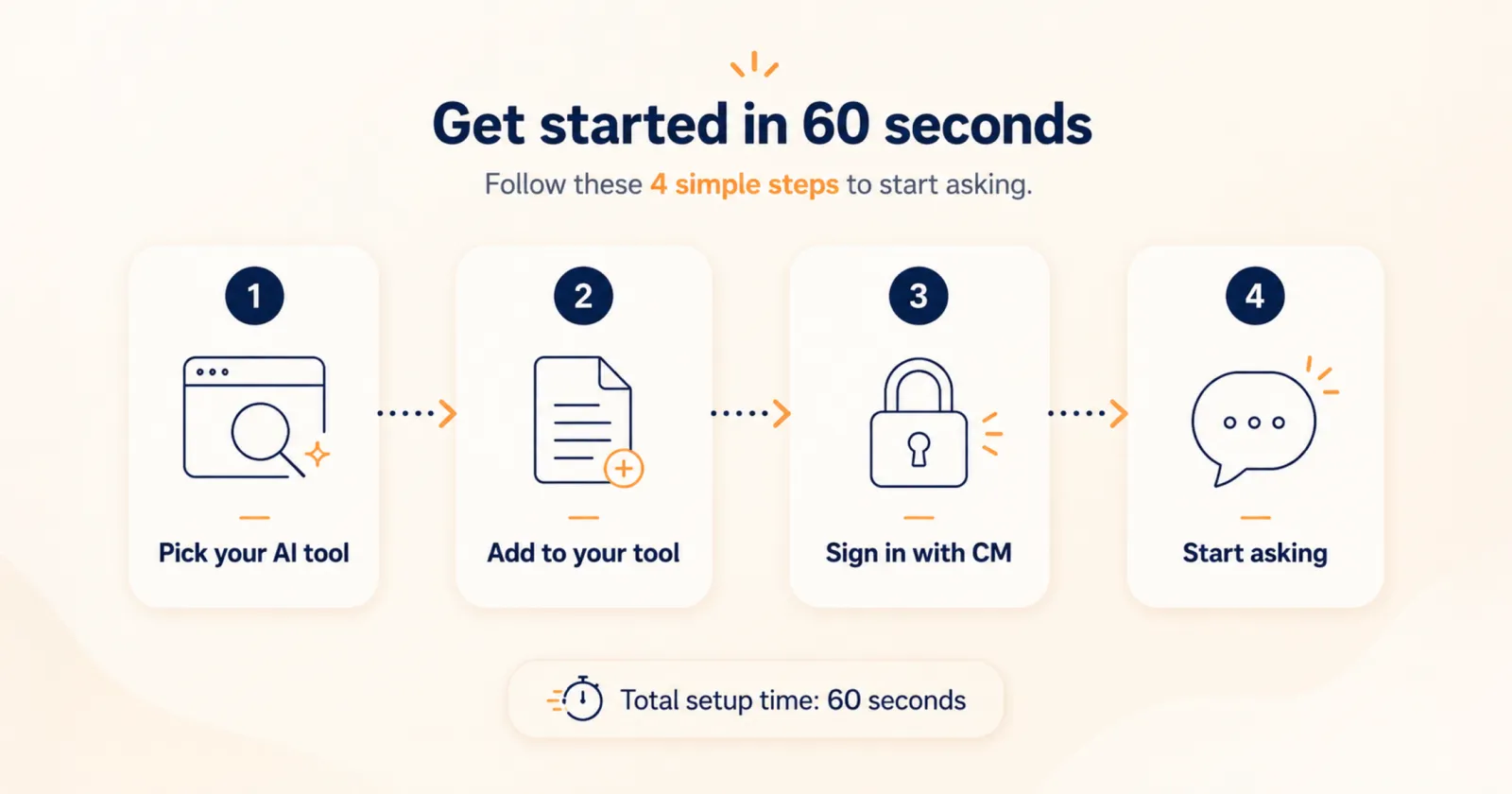
Get your MCP key
Sign in on the ConnectMachine MCP connect page with your account. You get a personal key that authenticates every request. Keys are managed by the backend and do not expire.
Paste the config into your tool
Copy the snippet below, replace YOUR_MCP_KEY with your key, and paste it into the right file: .mcp.json for Claude Code, ~/.cursor/mcp.json for Cursor, or .vscode/mcp.json for VS Code.
Start asking
Restart the tool if it asks, then try "List my contacts". Your assistant picks the right ConnectMachine tool for each request from there.
{
  "mcpServers": {
    "connectmachine": {
      "url": "https://mcp.connectmachine.ai/mcp",
      "headers": {
        "Authorization": "Bearer YOUR_MCP_KEY"
      }
    }
  }
}{
"servers": {
"connectmachine": {
"type": "http",
"url": "https://mcp.connectmachine.ai/mcp",
"headers": {
"Authorization": "Bearer YOUR_MCP_KEY"
}
}
}
}Claude on web and desktop skips the config file entirely: open Settings, then Connectors, choose Add custom connector, and paste the server URL. Zed supports remote MCP servers natively too. Our documentation at connectmachine.ai/docs/mcp has the exact snippet for every tool, ready to copy.
Availability and what comes next
Connecting your AI tool is included with ConnectMachine accounts. A few advanced actions follow the same Premium rules as the app, CSV export and filtering by industry or location among them, and the tool tells you plainly when one of those needs an upgrade.
The AI landscape is fragmenting. Every user has a favourite tool, and building a custom integration for each one is not feasible. MCP solves that. By supporting the standard, ConnectMachine becomes available in every AI tool that speaks it, and the number of tools speaking it grows every month. That is why we built this now: if MCP wins, ConnectMachine users get the benefit of every new AI tool automatically.
Frequently asked questions
What is MCP?
Do I need to be a developer to use this?
Does the MCP integration cost extra?
Is my data safe?
My AI tool is not listed. Can I still connect?
ConnectMachine MCP
Your network. Every AI tool. Start now.
Connect Claude, Cursor, VS Code, Zed, or any MCP-compatible tool to ConnectMachine in about a minute, then manage your self-curated personal network by simply asking.